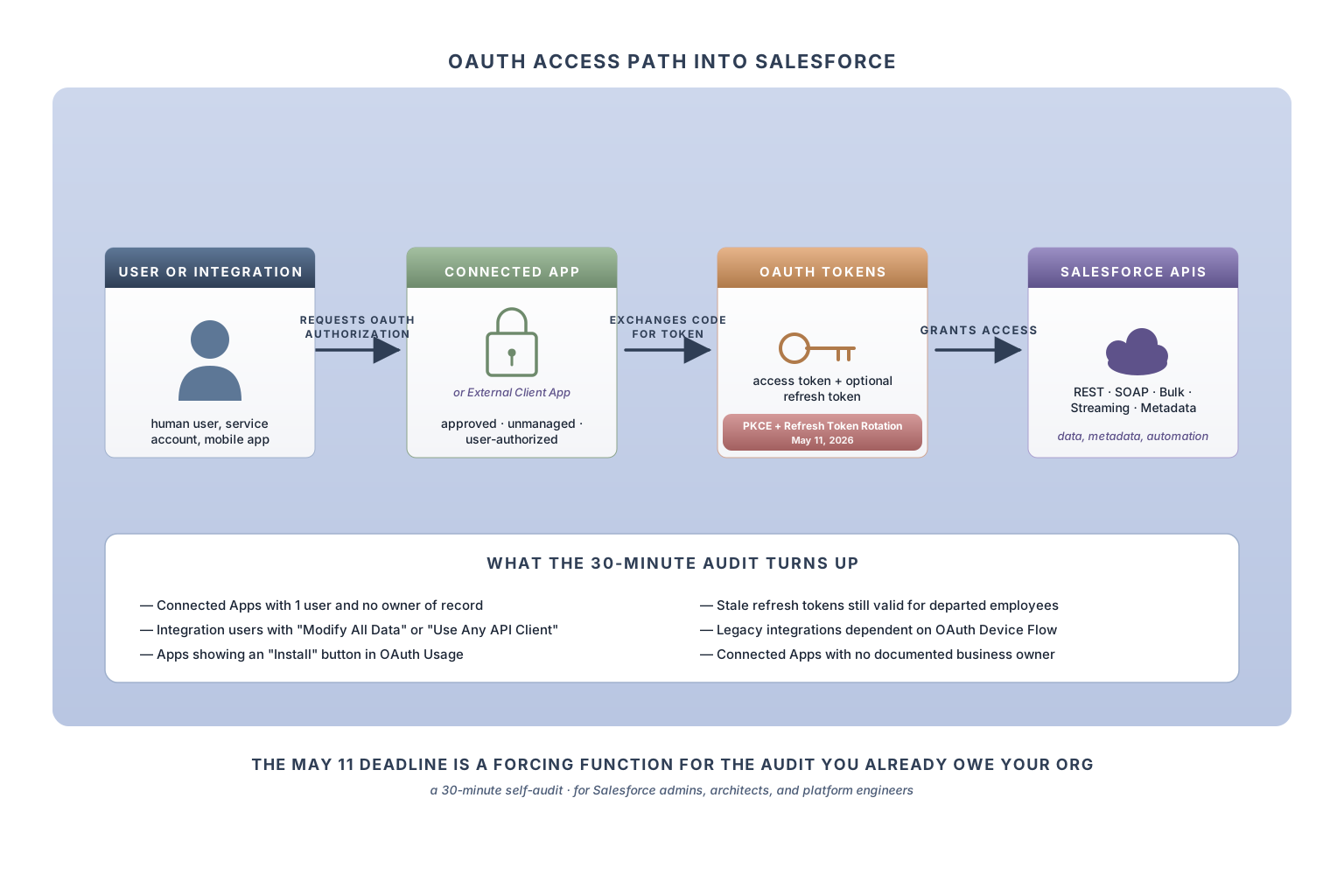
If you're a Salesforce admin and the phrase "PKCE and Refresh Token Rotation" wasn't in your vocabulary six months ago, you're not behind. It wasn't in most admins' vocabulary. But it's in everyone's vocabulary by Sunday, May 11, 2026, because that's when Salesforce's new OAuth security requirements for ISV and partner applications take effect. If your team ships a Connected App through AppExchange, the deadline is a hard compliance event for your engineering team. If your org consumes partner or third-party OAuth applications, the deadline is a forcing function for an audit you should have been doing already.
This post is a practical 30-minute checklist. No fearmongering. Just the work.
What's actually changing on May 11
Salesforce has set a May 11, 2026 deadline for ISV and partner applications that use Connected Apps or External Client Apps to meet new OAuth security requirements, including PKCE and Refresh Token Rotation.
- PKCE (Proof Key for Code Exchange) protects authorization-code based OAuth flows from authorization code interception attacks. It's especially important for public-client and browser- or mobile-style login patterns. PKCE doesn't apply to every OAuth flow; for example, JWT Bearer Flow and Client Credentials Flow use a different exchange where PKCE isn't relevant.
- Refresh Token Rotation reduces the risk of long-lived refresh tokens by issuing a new refresh token when the old one is used and invalidating the prior token.
The requirements apply to partner applications using Connected Apps or External Client Apps that are in use across more than two customer production orgs. The notification (published to partners on March 18, 2026) also references two additional configurable requirements, an Idle Refresh Token TTL and a Refresh Token IP Range Allow list, that partners are expected to implement before the deadline. Salesforce indicated these settings would become available to partners in mid-April; partners and customers should refer to the latest Salesforce documentation for current configuration guidance. For customer orgs consuming these applications, PKCE and Refresh Token Rotation are the two requirements that most directly affect what you'll see in your authorization flows.
Salesforce's partner guidance is direct: failure to comply can result in AppExchange de-listing or suspension of the application's interoperation with Salesforce services. That's a hard deadline for partners. For customer orgs that consume these applications, the app-code remediation usually belongs to the vendor, but the governance responsibility still belongs to the Salesforce team. Knowing which OAuth-connected applications exist in your org, which ones are installed and trusted, which ones are user-authorized but unmanaged, and which ones should be blocked or revoked is a Salesforce governance responsibility your team cannot outsource to the vendor.
That's what this checklist is for.
Why this matters even if you don't ship apps
The May 11 deadline matters to admins because it's a forcing function for a Connected App and OAuth audit most orgs should already be doing.
Recent Salesforce-related incidents show a broader pattern: attackers are increasingly targeting the identity, integration, and configuration layers around SaaS platforms. Some incidents involve OAuth tokens or connected applications. Others involve SSO compromise, privileged credentials, or Salesforce-hosted configuration mistakes. The common lesson is not that Salesforce itself was broken. The common lesson is that authenticated access paths can become data-exfiltration paths when no one owns them, reviews them, or monitors them.
The audit you do this week serves both purposes: reducing exposure from unmanaged OAuth access, and preparing your org for the broader shift from legacy Connected Apps toward External Client Apps.
The 30-minute checklist
Set a timer. Open a fresh tab to your Salesforce Setup page. The numbers below are based on real audits I've run with consulting clients. Your org may go faster or slower depending on integration complexity.
Step 1: Inventory (10 minutes)
From Setup, navigate to the Connected Apps OAuth Usage page. (In recent releases this is reachable via Setup search by typing "Connected Apps OAuth Usage" into the Quick Find box, or under App Manager.) Once you're on the page, screenshot it. Export the list if your org allows.
This page lists every Connected App that has been authorized by at least one user in your org, alongside an "Install" button next to apps that were authorized via OAuth but never installed as a managed package. An "Install" button is a useful signal but not a verdict on its own. Many legitimate Salesforce-shipped admin and developer tools (Salesforce CLI, Data Loader, Workbench, Inspector) show this button because they're OAuth-authorized rather than packaged. The button matters most when combined with an unfamiliar app name, an unfamiliar publisher, or a user count that doesn't match what you'd expect for a known integration.
For each Connected App on the page, note four things in a spreadsheet or tracking doc:
- Name and publisher. What does this app claim to be, and who publishes it?
- User count. How many users have authorized it? Use this as a context signal alongside recognition, not as a risk verdict on its own. A 1-user count is normal for service accounts, personal admin tools, or single-developer integrations. It's only worth flagging when you also don't recognize the app or you'd expect more users on it. A 0-active-tokens count usually just means nobody is currently using the app, which makes it a cleanup candidate, not a threat indicator.
- Recognition. Do you, as the admin, know what this app does? Is it on your approved-vendor list? Is it your CRM-to-marketing tool, your data loader, your survey vendor? Or do you have no idea? Recognition is the deciding factor in everything that follows.
- Install status. Is there an "Install" button next to it? An "Install" button means the app was authorized via OAuth but never installed as a managed package. Most legitimate Salesforce-shipped admin and developer tools (CLI, Data Loader, Workbench, Inspector) fall into this category and are normal. The button only signals risk when combined with an unfamiliar app name, an unfamiliar publisher, or a user count that doesn't match what you'd expect.
The output of this step is a spreadsheet with several columns and however many rows your org has Connected Apps. Don't try to act yet. Just inventory.
Step 2: Triage (10 minutes)
Go through your spreadsheet and add a column: action. Each row gets one of three values:
- Keep: You recognize it, it's actively used, and you know who owns it. This is your CRM, marketing tool, data loader, etc.
- Block: You don't recognize the app and at least one of these is true: the publisher name is unfamiliar, the user count doesn't match what you'd expect for a known integration, or the app shows an "Install" button without being a Salesforce-shipped tool you recognize. Recognition is the deciding factor; the other signals only matter when combined with an unfamiliar app.
- Investigate: You're not sure. Common reasons: a former employee installed it, the vendor changed names, you remember the name but don't remember why it was authorized, or it's an Install-button app that could be a legitimate Salesforce-shipped tool but you're not certain.
In a typical first audit, most orgs find a meaningful number of apps that fall into Block or Investigate, often more than they expected. If you're seeing a lot of unfamiliar app names, you're not unusual. You're just doing the audit for the first time.
For the Block rows, you have two operational levers, and it's worth being precise about them. Revoking tokens removes current authorization for an app, either for one user or for all users. The app stops working immediately for whoever was using it. Blocking an app prevents it from being authorized again going forward. The two are independent. In a real audit, use them deliberately. Revoke when active access should end. Block when the app should not be authorized again without admin review.
For most Block rows in a first audit, you want both: revoke active tokens, then block the app. Start from the Connected Apps OAuth Usage page. From there, the revoke control is typically reachable by drilling into the app's user list, and the block control is typically reachable from the app's detail or management page. The exact UI placement varies by Salesforce release and by whether the app is a managed package, a custom Connected App, or an External Client App. Find both controls in your org before working through the Block rows in bulk.
If you're not 100% sure an app is unused, move the row to Investigate first. A revoke breaks the app immediately for anyone using it, with no soft-warn period.
For the Investigate rows, your audit isn't done. Document them, set yourself a calendar reminder for next week, and come back to them with the actual users involved.
Step 3: Owner accountability (10 minutes)
For every Connected App in the Keep pile, your spreadsheet needs another column: owner. Not the user who originally authorized it. The internal team or person currently responsible for the integration. The person who would get paged if it broke at 2 AM. The person who would sign off on its renewal.
In a mature integration governance model, every Connected App should have three owners: a business owner, a technical owner, and a security reviewer. For a 30-minute first-pass audit, even one accountable name is better than none.
This is the column that will be empty for half your apps, even in well-governed orgs. That's normal. It's also the gap that your auditor (and any breach forensic investigator) will care most about. "Who owns this?" is the first question after any incident, and "we don't know" is the worst possible answer.
If you can't fill in an owner today, start with the user count. Apps with a small number of users typically belong to that team or department. Apps with broader user counts typically belong to a department: Sales, Marketing, Customer Success, IT. Make a best guess, write it in the spreadsheet, and circulate the list to department leads to confirm or correct.
The goal isn't perfection. The goal is a document where every row has a name next to it. That document is the artifact you show your auditor, your CISO, or your forensic investigator if you ever need to.
Things to watch out for
A few patterns I see in real audits that aren't obvious from documentation:
The integration user with broad permissions. Many orgs have one or two service-account users that integrations authenticate as. If those users hold profiles with broad object access (or "Modify All Data"), every Connected App they back can potentially reach a wide blast radius, especially when paired with broad OAuth scopes. Review the profile and permission set assignments on every integration user. Apply least-privilege ruthlessly. If the integration only needs to read Accounts and Contacts, the user shouldn't have edit access to anything else.
Long-lived refresh tokens for stale authorizations. In many orgs, refresh tokens have historically been configured as valid until revoked. Refresh Token Rotation reduces that long-lived-token risk for apps that have adopted it, but admins should still plan a deliberate revoke-and-reauthorize process for stale, former-employee, or unmanaged app authorizations rather than assuming old tokens have been remediated automatically.
Apps using OAuth Device Flow. Salesforce restricted OAuth Device Flow usage in 2025, especially for default or uninstalled Connected App patterns such as Salesforce CLI and Data Loader, after attackers abused device-code style authorization in social-engineering campaigns. If a legacy integration still depends on Device Flow, verify the current supported path and migrate it to an approved OAuth flow.
Users with "Use Any API Client." The "Use Any API Client" user permission can undermine API Access Control and Connected App restrictions for users who hold it. Treat it as a privileged exception, not a standard user permission. Search permission set and profile assignments for this permission and treat the results as a separate audit list.
What you can't do with the OAuth Usage page
The OAuth Usage page is the right starting point, but it has limits worth naming:
- It is primarily a Connected App authorization view. It does not give you a complete inventory of External Client Apps, Auth Providers, Named Credentials, or External Credentials. Those are separate areas of Setup with their own audit work.
- It doesn't show certificates. The certificates that back Connected App JWT auth, mutual TLS integrations, and Identity Provider configurations live in the Certificate and Key Management section. Each one has its own expiry date and its own dependency graph.
- It doesn't show what each Connected App is used for. The user count tells you how many people authorized it. The OAuth scopes tell you what it can do. Neither tells you which Apex classes, which Flows, or which scheduled jobs depend on it.
- It doesn't tell you who owns each app. There's no Owner field. The accountability layer doesn't exist in the platform.
These gaps are not new. They're a baseline limitation of native Salesforce tooling for integration governance. Native tooling tells you what's authorized; it doesn't tell you what's owned, what's at risk, or what depends on it.
A complete integration governance picture has to span Connected Apps, External Client Apps, OAuth tokens, Auth Providers, Named Credentials, External Credentials, certificates and Key Management, JWT and mTLS certs, SAML Identity Provider certs, integration users, permission sets, and the Apex, Flow, and scheduled jobs that depend on all of the above. The OAuth Usage page is one starting view into one corner of that.
Action items, in priority order
If you do nothing else this week:
Open the Connected Apps OAuth Usage page in Setup. Screenshot it. Email the screenshot to yourself with the subject "Connected App baseline May 6 2026." That's your starting point if anyone ever asks.
Run the inventory and triage steps above. Block the apps you don't recognize. Document the rest with owners. Don't aim for perfect; aim for "every row has a name next to it."
Apply the same audit pattern to Auth Providers (Setup, Auth Providers), Named Credentials (Setup, Named Credentials), and your Certificate and Key Management. The May 11 deadline is about Connected Apps; the integration surface is broader.
Build a monthly cadence. New Connected Apps appear in orgs all the time, often without admin awareness. The OAuth Usage page in May won't match the OAuth Usage page in August unless you check.
The May 11 deadline is a forcing function, not the finish line. The orgs that handle it well will treat it as the kickoff for ongoing integration governance, not a one-time scramble. The orgs that handle it poorly will scramble this week, declare victory, and move on.
A note on what comes next
The Connected App security tightening that arrives May 11 is the visible piece of a bigger shift. Salesforce's direction is clear: External Client Apps are becoming the preferred model for new client integrations, while existing Connected Apps continue to work for now. Spring '26 has already restricted creation of new Connected Apps by default in many contexts. The migration will likely play out in phases, so every audit your team does now becomes preparation for that transition. The integration governance work doesn't end on May 11. It starts there.